Wednesday, 15 October 2014

Windows 7 Backup To Network Location

If you want to prevent your computer from worst your data, files. you can take take backup of your computer to a network location. This the enhance feature in windows 7. you can create backup schedule of your computer. In the future in the failure of you computer you can recover your all data from backup which you have take on Network.


 Take Windows 7 Backup To Network Location


Follows these steps to take backup windows 7 to a network location ...

Windows 7 Backup to Network Location

1. Click on Start button , then type backup and restore in  Search box and then Click on Backup and Restore option .


2.  Now Click on Set Up Backup on Back Up or restore windows .


3. Now You have to choose Backup location where you want to take Back Up, Click on Save on a network.. for Backup on a network Location .


4. Now Click on Browse and select network Location where you want to take backup , Folder must be shared in which you want to take back up .
or
Type the Path of the Share folder where you want to take backup on your Home Network

 then Give to User name and password of Network Location system and then Click on OK .


5.  Now Select Backup destination which you have added , then Click on Next .


6. If you choose Let choose windows backup , then it will not backup of drive which formatted with FAT .
Then you can choose Let me choose for Custom backup  and then Click on Next .


7. Now select file or Folder check box  which you want to take backup and you can select Include a System image of drive : SYSTEM drive to Backup of System Image Drive then Click on Next .


8. Now check your selected files and folder for backup . and if you want to change schedule of your backup then click on change schedule , and then next windows Select date and time for schedule and then Click on ok and then Click save setting and run backup .


9. Now Backup Process is Going on .............


Tuesday, 14 October 2014

Who Hacked Dropbox ?


Nearly 7 Million Dropbox Account Passwords Allegedly Hacked
Internet users have faced a number of major privacy breaches in last two months. Major in the list are The FappeningThe Snappening and now the latest privacy breach in Dropbox security has gained everybody’s attention across the world.

Dropbox, the popular online locker service, appears to have been hacked by an unnamed hacker group. It is still unclear how the account details of so many users were accessed and, indeed, if they are actually legitimate or not. However, the group claims to have accessed details from nearly 7 million individual accounts and are threatening to release users’ photos, videos and other files.

HACKERS CLAIMED TO RELEASE 7 MILLION USERS’ PERSONAL DATA
A thread surfaced on Reddit today that include links to files containing hundreds of usernames and passwords for Dropbox accounts in plain text. Also a series of posts with hundreds of alleged usernames and passwords for Dropbox accounts have been made to Pastebin, an anonymous information-sharing site.

Hackers have already leaked about 400 accounts by posting login credentials, all starting with the letter B, and labelled it as a "first teaser...just to get things going". The perpetrators are also promising to release more more password details if they're paid a Bitcoin ransom.
"More Bitcoin = more accounts published on Pastebin. As more BTC is donated, More pastebin pastes will appear."
The security breach in Dropbox would definitely have bothered its millions of users and since passwords are involved in this incident, so it has more frightening consequences on its users. Reddit users have tested some of the leaked username and password combinations and confirmed that at least some of them work.

DROPBOX DENIED THE HACK - THIRD PARTY IS RESPONSIBLE
However, Dropbox has denied it has been hacked, saying the passwords were stolen apparently from third-party services that users allowed to access their accounts. In a statement to The Next Web, Dropbox said:
"Dropbox has not been hacked. These usernames and passwords were unfortunately stolen from other services and used in attempts to log in to Dropbox accounts. We'd previously detected these attacks and the vast majority of the passwords posted have been expired for some time now. All other remaining passwords have expired as well."
The incident came just few days after the Snappening incident in which the personal images of as much as100,000 Snapchat users were leaked online, which was the result of a security breach in the its third-party app.

Snapchat has denied that its service or server was ever compromised, but the servers of a third-party app designed to save Snapchat photos, which became the target for hackers to obtain personal photographs.

DROPBOX - "HOSTILE TO PRIVACY" SAYS SNOWDEN
Dropbox was in the news earlier this week when, in a recent interview with The Guardian, NSA whistleblowerEdward Snowden called Dropbox a "targeted, wannabe PRISM partner" that is "very hostile to privacy" — referring to its ability to access your data itself, which is yet another security consideration when it comes to web services.

Snowden suggested web users to stop using Dropbox and warned them that the cloud storage service does not safeguard users’ privacy because it holds encryption keys and can therefore be forced by governments to hand over the personal data they store on its servers. He suggested people to use an alternative cloud storage provider that do not store any encryption keys, so that the users’ data cannot be read by anyone.
USERS ARE ADVISED TO CHANGE PASSWORDS
Until the full scope of the problem is known, it’s probably worthwhile changing your password. But whether the attack is confirmed or not, it’s a good idea to change your password just to be on a safer side — especially for those users who use same password for multiple services.

Users are also recommended to turn on two-factor authentication, which Dropbox now supports and install a time-based, one-time password app on a mobile device.

Update: Dropbox has issued a statement on its blog further clarifying that the Dropbox passwords were stolen from "unrelated services."
"The usernames and passwords...were stolen from unrelated services, not Dropbox," the company said in a blog post. "Attackers then used these stolen credentials to try to log in to sites across the internet, including Dropbox. We have measures in place that detect suspicious login activity and we automatically reset passwords when it happens."
"Attacks like these are one of the reasons why we strongly encourage users not to reuse passwords across services. For an added layer of security, we always recommend enabling 2 step verification on your account."

Monday, 13 October 2014

What is RAID ?

RAID is a Redundant Array of Inexpensive disks, but nowadays it is called Redundant Array of Independent drives. Earlier it is used to be very costly to buy even a smaller size of disk, but nowadays we can buy a large size of disk with the same amount like before. Raid is just a collection of disks in a pool to become a logical volume.
RAID in Linux
Understanding RAID Setups in Linux
Raid contains groups or sets or Arrays. A combine of drivers make a group of disks to form a RAID Array or RAID set. It can be a minimum of 2 number of disk connected to a raid controller and make a logical volume or more drives can be in a group. Only one Raid level can be applied in a group of disks. Raid are used when we need excellent performance. According to our selected raid level, performance will differ. Saving our data by fault tolerance & high availability.
This series will be titled Preparation for the setting up RAID ‘s through Parts 1-9 and covers the following topics.
Part 1Introduction to RAID, Concepts of RAID and RAID Levels
Part 2: How to setup RAID0 (Stripe) in Linux
Part 3: How to setup RAID1 (Mirror) in Linux
Part 4: How to setup RAID5 (Striping with Distributed Parity) in Linux
Part 5: How to setup RAID6 (Striping with Double Distributed Parity) in Linux
Part 6: How to setup RAID10 or 1+0 (Nested) in Linux
Part 7: Grow a RAID Array in Linux
Part 8: Recovering (Rebuilding) failed drives in RAID
Part 9: Managing RAID in Linux
This is the Part 1 of a 9-tutorial series, here we will cover the introduction of RAID, Concepts of RAID and RAID Levels that are required for the setting up RAID in Linux.

Software RAID and Hardware RAID

Software RAID have low performance, because of consuming resource from hosts. Raid software need to load for read data from software raid volumes. Before loading raid software, OS need to get boot to load the raid software. No need of Physical hardware in software raids. Zero cost investment.
Hardware RAID have high performance. They are dedicated RAID Controller which is Physically built using PCI express cards. It won’t use the host resource. They have NVRAM for cache to read and write. Stores cache while rebuild even if there is power-failure, it will store the cache using battery power backups. Very costly investments needed for a large scale.
Hardware RAID Card will look like below:
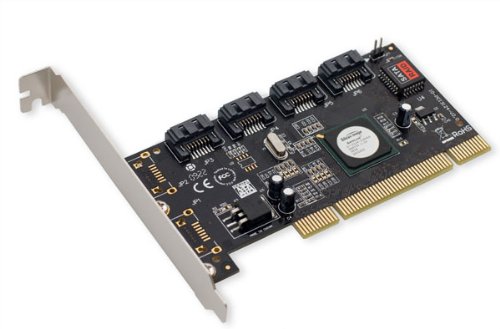
Hardware RAID
Hardware RAID

Featured Concepts of RAID

  1. Parity method in raid regenerate the lost content from parity saved information’s. RAID 5, RAID 6 Based on Parity.
  2. Stripe is sharing data randomly to multiple disk. This won’t have full data in a single disk. If we use 3 disks half of our data will be in each disks.
  3. Mirroring is used in RAID 1 and RAID 10. Mirroring is making a copy of same data. In RAID 1 it will save the same content to the other disk too.
  4. Hot spare is just a spare drive in our server which can automatically replace the failed drives. If any one of the drive failed in our array this hot spare drive will be used and rebuild automatically.
  5. Chunks are just a size of data which can be minimum from 4KB and more. By defining chunk size we can increase the I/O performance.
RAID’s are in various Levels. Here we will see only the RAID Levels which is used mostly in real environment.
  1. RAID0 = Striping
  2. RAID1 = Mirroring
  3. RAID5 = Single Disk Distributed Parity
  4. RAID6 = Double Disk Distributed Parity
  5. RAID10 = Combine of Mirror & Stripe. (Nested RAID)
RAID are managed using mdadm package in most of the Linux distributions. Let us get a Brief look into each RAID Levels.

RAID 0 (or) Striping

Striping have a excellent performance. In Raid 0 (Striping) the data will be written to disk using shared method. Half of the content will be in one disk and another half will be written to other disk.
Let us assume we have 2 Disk drives, for example, if we write data “TECMINT” to logical volume it will be saved as ‘T‘ will be saved in first disk and ‘E‘ will be saved in Second disk and ‘C‘ will be saved in First disk and again ‘M‘ will be saved in Second disk and it continues in round-robin process.
In this situation if any one of the drive fails we will loose our data, because with half of data from one of the disk can’t use to rebuilt the raid. But while comparing to Write Speed and performance RAID 0 is Excellent. We need at least minimum 2 disks to create a RAID 0 (Striping). If you need your valuable data don’t use this RAID LEVEL.
  1. High Performance.
  2. There is Zero Capacity Loss in RAID 0
  3. Zero Fault Tolerance.
  4. Write and Reading will be good performance.

RAID 1 (or) Mirroring

Mirroring have a good performance. Mirroring can make a copy of same data what we have. Assuming we have two numbers of 2TB Hard drives, total there we have 4TB, but in mirroring while the drives are behind the RAID Controller to form a Logical drive Only we can see the 2TB of logical drive.
While we save any data, it will write to both 2TB Drives. Minimum two drives are needed to create a RAID 1 or Mirror. If a disk failure occurred we can reproduce the raid set by replacing a new disk. If any one of the disk fails in RAID 1, we can get the data from other one as there was a copy of same content in the other disk. So there is zero data loss.
  1. Good Performance.
  2. Here Half of the Space will be lost in total capacity.
  3. Full Fault Tolerance.
  4. Rebuilt will be faster.
  5. Writing Performance will be slow.
  6. Reading will be good.
  7. Can be used for operating systems and database for small scale.

RAID 5 (or) Distributed Parity

RAID 5 is mostly used in enterprise levels. RAID 5 work by distributed parity method. Parity info will be used to rebuild the data. It rebuilds from the information left on the remaining good drives. This will protect our data from drive failure.
Assume we have 4 drives, if one drive fails and while we replace the failed drive we can rebuild the replaced drive from parity informations. Parity information’s are Stored in all 4 drives, if we have 4 numbers of 1TB hard-drive. The parity information will be stored in 256GB in each drivers and other 768GB in each drives will be defined for Users. RAID 5 can be survive from a single Drive failure, If drives fails more than 1 will cause loss of data’s.
  1. Excellent Performance
  2. Reading will be extremely very good in speed.
  3. Writing will be Average, slow if we won’t use a Hardware RAID Controller.
  4. Rebuild from Parity information from all drives.
  5. Full Fault Tolerance.
  6. 1 Disk Space will be under Parity.
  7. Can be used in file servers, web servers, very important backups.

RAID 6 Two Parity Distributed Disk

RAID 6 is same as RAID 5 with two parity distributed system. Mostly used in a large number of arrays. We need minimum 4 Drives, even if there 2 Drive fails we can rebuild the data while replacing new drives.
Very slower than RAID 5, because it writes data to all 4 drivers at same time. Will be average in speed while we using a Hardware RAID Controller. If we have 6 numbers of 1TB hard-drives 4 drives will be used for data and 2 drives will be used for Parity.
  1. Poor Performance.
  2. Read Performance will be good.
  3. Write Performance will be Poor if we not using a Hardware RAID Controller.
  4. Rebuild from 2 Parity Drives.
  5. Full Fault tolerance.
  6. 2 Disks space will be under Parity.
  7. Can be Used in Large Arrays.
  8. Can be use in backup purpose, video streaming, used in large scale.

RAID 10 (or) Mirror & Stripe

RAID 10 can be called as 1+0 or 0+1. This will do both works of Mirror & Striping. Mirror will be first and stripe will be the second in RAID 10. Stripe will be the first and mirror will be the second in RAID 01. RAID 10 is better comparing to 01.
Assume, we have 4 Number of drives. While I’m writing some data to my logical volume it will be saved under All 4 drives using mirror and stripe methods.
If I’m writing a data “TECMINT” in RAID 10 it will save the data as follow. First “T” will write to both disks and second “E” will write to both disk, this step will be used for all data write. It will make a copy of every data to other disk too.
Same time it will use the RAID 0 method and write data as follow “T” will write to first disk and “E” will write to second disk. Again “C” will write to first Disk and “M” to second disk.
  1. Good read and write performance.
  2. Here Half of the Space will be lost in total capacity.
  3. Fault Tolerance.
  4. Fast rebuild from copying data.
  5. Can be used in Database storage for high performance and availability.

Conclusion

In this article we have seen what is RAID and which levels are mostly used in RAID in real environment. Hope you have learned the write-up about RAID. For RAID setup one must know about the basic Knowledge about RAID. The above content will fulfil basic understanding about RAID.
In the next upcoming articles I’m going to cover how to setup and create a RAID using Various Levels, Growing a RAID Group (Array) and Troubleshooting with failed Drives and much more.

Friday, 22 August 2014

SCCM Server

A Short notes on ' SCCM 2007 Basics'


I've been looking for short notes that facilitate quick understanding knowledge on SCCM 2007. I finally put my efforts to bring a short notes on SCCM 2007 to help those who are already familiar with Systems Management Server (SMS) 2003 and who wish to quickly develop understanding knowledge on 'Microsoft System Center Configuration Manager 2007'.


Microsoft SCCM -2007 (ConfigMgr) provides a comprehensive solution for change and configuration management for the Microsoft platform, enabling organizations to provide relevant software and updates to users quickly and cost-effectively, Allows IT staff to monitor and manage the hardware & software in a modern distributed environment.


SCCM 2007 Features
  • HW/SW Inventory
  • Software Distribution
  • Software Update
  • Software Metering
  • Operating System Deployment (Image capture/deployment, User State Migration, Task sequence)
  • Manage site accounts tool (MSAC)
  • Asset Intelligence Remote tools

NAP Works with Windows Server 2008 operating system Network Policy Server to restrict computers from accessing the network if they do not meet specified requirements The System Center Family, The products included under the System Center umbrella address the challenges of managing information technology in organizations of different sizes.


What's New


  • Branch distribution point
  • Desired configuration management
  • Wake On LAN
  • Network Access Protection (NAP)


In addition to SCCM 2007, the System Center products include: System Center Operations Manager 2007 -Allows IT staff to monitor and manage the hardware and software in a modern software distributed environment. System Center code name “Service Desk” When it released, “Service Desk” is expected to provide implementations of fundamental IT Service Management processes, including incident management, problem management, and change management.

System Center Data Protection Manager 2006 Provides data backup and restore for Windows file servers. System Center Essentials 2007 Provides tools for less-specialized IT staff in smaller organizations to manage their environments more effectively with the three most important management functions: monitoring distributed systems, automating software updates and installing applications. System Center Virtual Machine Manager Helps management staff with the process of consolidating applications onto virtualized servers. System Center Capacity Planner 2006 Capacity Planner is a tool for determining what hardware resources will be required to run an application, such as Exchange Server 2003, to meet specific performance and availability goals.


For more information about Microsoft System Center,


SCCM Sites 

A site consists of a site server, site system roles, clients, and resources. A site always requires access to a Microsoft SQL Server database. There are several types of SCCM 2007 sites. A SCCM 2007 site uses boundaries to determine the clients belonging to the site. Multiple sites can be configured into site hierarchies and connected such that you can manage bandwidth utilization between sites. A SCCM 2007 site is identified by the three-character code and the friendly site name configured during Setup and types of sites as follows.


Primary Sites-A primary site stores SCCM 2007 data for itself and all the sites beneath it in a SQL Server database.

Secondary Site-A secondary site has no SCCM 2007 site database. It is attached to and reports to a primary site. The secondary site is managed by a SCCM 2007 administrator running a Configuration Manager 2007 console that is connected to the primary site. The secondary site forwards the information it gathers from Configuration Manager 2007 clients, such as computer inventory data and Configuration Manager 2007 system status information, to its parent site. The primary site then stores the data of both the primary and secondary sites in the SCCM 2007 site database. The advantages of using secondary sites are that they require no additional SCCM 2007 server license and do not require the overhead of maintaining an additional database. Secondary sites are managed from the primary site it is connected to, so they are frequently used in sites with no local administrator present. The disadvantage of secondary sites is that they must be attached to a primary site and cannot be moved to a different primary site without deleting and recreating the site. Also, secondary sites cannot have sites beneath them in the hierarchy.

Parent Site-A parent site is a primary site that has one ore more sites attached to it in the hierarchy. Only a primary site can have child sites. A secondary site is always a child site. A parent site contains pertinent information about its lower level sites, such as computer inventory data and SCCM 2007 system status information, and can control many operations at the child sites.

Child Sites-A child site is a site that is attached to a site above it in the hierarchy. The site it reports to is its parent site. A child site can have only one parent site. SCCM 2007 copies all the data that is collected at a child site to its parent site. A child site is either a primary site or a secondary site.

Central Site -A central site has no parent site. Typically, a central site has child and grandchild sites and aggregates all of their client information to provide centralized management and reporting. A site with no parent and no child site is still called a central site although it is also referred to as a standalone site. A central site to collect all of the site information for centralized management.


Site Systems 

Each site contains one site server and one or more site systems. The site server is the computer where you install SCCM 2007 and it hosts services required for SCCM 2007. A site system is any computer running a supported version of Windows® or a shared folder that hosts one or more site system roles. A site system role is a function required to use SCCM 2007 or to use a feature of SCCM 2007. Multiple site roles can be combined on a single site system, including running all site roles on the site server, but this is usually appropriate only for very small and simple environments.


Site System Roles

  • Management Point- The site system role that serves as the primary point of contact between SCCM 2007 clients and the Configuration Manager 2007 site server.
  • Server locator Point -A site system role that locates management points for SCCM 2007 clients.
  • Distribution Point-A site system role that stores packages for clients to install. Software Update Point-A site system role assigned to a computer running Microsoft Windows Server Update Services (WSUS).
  • Reporting Point-A site system role hosts the Report Viewer component for Web-based reporting functionality.
  • Fallback Status Point - A site system role that gathers state messages from clients that cannot install properly, cannot assign to a Configuration Manager 2007 site, or cannot communicate securely with their assigned management point.
  • PXE Service Point-A site system role that has been configured to respond to and initiate operating system deployments from computers whose network interface card is configured to allow PXE boot requests. User
  • State Migration Point-A site system role that stores user state data while a computer is being migrated to a new operating system.


How Site communicates?


Clients communicate with site systems hosting site system roles. Site systems communicate with the site server and with the site database. If there are multiple sites connected in a hierarchy, the sites communicate with their parent, child, or sometimes grandchild sites. Site Boundaries, SCCM 2007 uses boundaries to determine when clients and site systems are in the site and outside of the site. Boundaries can be IP subnets, IP address ranges, IPv6 prefixes, and Active Directory sites. Two sites should never share the same boundaries. Assigning the same IP subnet, IP address range, IPv6 prefix or Active Directory site to two different sites makes it difficult to determine which clients should be managed in the site.

Inter-Site Communication When you have a separate sites, SCCM 2007 uses senders to connect the two sites. Senders have sender addresses that help them locate the other site. When sending data between sites, senders provide fault tolerance and bandwidth management.

Intra-site Communications They use either server message block (SMB), HTTP, or HTTPS, depending on various site configuration choices you make. Because all of these communications are unmanaged, that is, they happen at any time with no consideration for bandwidth consumption, it is beneficial to make sure these site elements have fast communication channels.

Discovery Methods 


  • Active Directory System Discovery -Discovers details about the computer
  • Active Directory System Group Discovery - Discovers details such as organizational unit, global groups, universal groups, and nested groups.
  • Active Directory User Discovery-Retrieves Active Directory User Discovery
  • Active Directory Security Group Discovery-Discovers security groups created in Active Directory.
  • Heartbeat Discovery-Refresh Configuration Manager client computer discovery data in the site database.
  • Network Discovery-Searches the network for resources that meet a specific profile, From router's ARP cache, SNMP agent and DHCP Each discovery method creates data discovery records (DDRs) for resources and sends them to the site database, even if the discovered resource is not capable of being a SCCM 2007 client.
Active Directory User Discovery and Active Directory Security Group Discovery allow you to target software distribution packages to users and groups instead of computers.


Client Installation
SCCM 2007 provides several options for installing the client software.

The following table lists the client computer installation methods.

  • Software update point installation -Uses the Automatic Update configuration of a client to direct the client computer to a WSUS computer configured as a SCCM 2007 software update point.

  • Client push installation -Uses an account with administrative rights to access the client computers and install the SCCM 2007 client software.

  • Manual client installation -A user with administrative rights can install the client software by running CCMSetup on the client computer. A variety of switches modify the installation options.

  • Group Policy installation -Uses Group Policy software installation to install CCMSetup.msi.

  • Imaging -The client software can be added to an image, including images created and deployed with SCCM 2007 operating system deployment.

  • Software Distribution -Existing clients can be upgraded or redeployed using SCCM 2007 software distribution.


Mobile devices use different installation methods Client Assignment Clients must be assigned to a site before they can be managed by that site. Clients can be assigned to a site during installation or after installation. Assigning a client involves either telling it a specific site code to use, or configuring the client to automatically assign to a site based on boundaries. If the client is not assigned to any site during the client installation phase, the client installation phase completes, but the client cannot be managed by SCCM 2007.

Clients cannot be assigned to secondary sites; they are always assigned to the parent primary site, but can reside in the boundaries of the secondary site, taking advantage of any proxy management points and distribution points at the secondary site. This is because clients communicate with management points and management points must communicate with a site database. Secondary sites do not have their own site database, They use the site database at their parent primary site. Authenticating Clients Before SCCM 2007 trusts a client, it requires some manner of authentication. In mixed mode, clients must be approved, either by manually approving each client or by automatically approving all clients or all clients in a trusted Windows domain. In native mode, clients must be issued client authentication certificates prior to installing the SCCM 2007 client software.

Blocking Clients- If a client computer is no longer trusted, the Configuration Manager administrator can block the client in the SCCM 2007 console.

Client Agents
Client agents are SCCM 2007 components that run on top of the base client components.


Computer Client Agent Properties-Configures how often client computers retrieve the policy that gives them the rest of their configuration settings.

Device Client Agent Properties-Configures all of the properties specific to mobile device clients. Hardware Inventory Client Agent-Enables and configures the agent that collects a wide variety of information about the client computer.

Software Inventory Client Agent-Enables and configures which files Configuration Manager inventories and collects.

Advertised Programs Client Agent-Enables and configures the software distribution feature.

Desired Configuration Management Client Agent-Enables the client agent that evaluates whether computers are in compliance with configuration baselines that are assigned to them

Remote Tools Client Agent-Enables Configuration Manager remote control

Network Access Protection Client Agent-Enables Configuration Manager Network Access Protection

Software Updates Client Agent-Enables the agent that scans for and installs software updates on client computers.


Administrator Console
You can run the console from the site server or install additional consoles on your desktop or help desk computers to facilitate management. One console can manage many sites or many consoles can manage a single site. The SCCM 2007 console runs as a Microsoft Management Console (MMC) snap-in, although you must run SCCM 2007 Setup on the computer so that the snap-in is available.


Collections 
Collections represent groups of resources and can consist not only of computers, but also of Microsoft Windows users and user groups as well as other discovered resources. Collections provide you with the means to organize resources into easily manageable units, enabling you to create an organized structure that logically represents the kinds of tasks that you want to perform.

Inventory 
Hardware inventory gives you system information Software inventoried file types and versions present on client computers Queries It uses WBEM query language (WQL) to query the site database. Query results are returned in the SCCM 2007 console, where they can be exported using the MMC export list feature.

Reporting 
Reporting is a supporting feature to many other SCCM 2007 features. Reports are returned in Web pages in the browser. With reporting you can create reports that show the inventory you have collected or the software updates successfully deployed. You can also create dashboards, which combine several different views of information. Several pre-created reports are available to support common reporting scenarios. For more information about the reports provided for each feature, see the feature documentation.

Software Distribution 
Software distribution allows you to push just about anything to a client computer. Packages in software distribution can contain source files to deploy software applications and commands called programs that tell the client what executable file to run. A single package can contain multiple programs, each configured to run differently. Packages can also contain command lines to run files already present on the client, without actually containing additional source files.

Software updates 
The software updates feature provides a set of tools and resources that can help manage the complex task of tracking and applying software updates to client computers in the enterprise. Software updates in SCCM 2007 requires a Windows Server Update Services (WSUS) server to be installed and uses that to scan the client computers for applicable software updates. The administrator views which updates are needed in the environment and creates packages and deployments containing the source files for the software updates. Clients then install the software updates from distribution points and report their status back to the site database.

Software Metering
Software metering enables you to collect and report software program usage data. The data provided by these reports can be used by many groups within the organization such as IT and corporate purchasing. Software metering in SCCM 2007 supports the following scenarios: Identify which software applications are being used, and who is using them. Identify the number of concurrent usages of a specified software application. Identify actual software license requirements. Identify redundant software application installations. Identify unused software applications which could be relocated.

Operating System Deployment 
Operating system deployment enables you to install new operating systems and software onto a computer. You can use operating system deployment to install operating system images to new or existing computers as well as to computers with no connection your SCCM 2007 site. By using task sequences and the driver catalog operating system deployment streamlines new computer installations by allowing you to install software using one dynamic image that can be installed on different types of computers and configurations. Operating system deployment provides the following solutions for deploying operating system images to computers: Provide a secure operating system deployment environment. Assist with managing the cost of deploying images by allowing one image to work with different computer hardware configurations. Assist with unifying deployment strategies to help provide a solid deployment foundation for future operating system deployment methods.

Desired Configuration Management 
Desired configuration management enables you to define configuration standards and policies, and audit compliance throughout the enterprise against those defined configurations. Best practices configurations can be used from Microsoft and vendors in the form of Microsoft System Center SCCM 2007 Configuration Packs. These Configuration Packs can then be refined to meet customized business requirements. Additionally, desired configuration management supports an authoring environment for customized configurations. This feature is designed to provide data for use by many groups within the organization, including IT and corporate security.

Mobile Device Management 
Mobile devices are supported as SCCM 2007 clients. For documentation purposes, mobile clients are treated as a separate feature. Mobile clients can run a subset of SCCM 2007 features such as inventory and software distribution, but cannot be managed by remote control and cannot receive operating system deployments like desktop clients.

Remote Tools
Remote tools in SCCM 2007 includes the remote control feature which allows an operator with sufficient access rights the ability to remotely administer client computers in the SCCM 2007 site hierarchy.

Network Access Protection
Network Access Protection (NAP) is a policy enforcement platform built into the Windows Vista and Windows Server® 2008 operating systems that helps you to better protect network assets by enforcing compliance with system health requirements. You can configure DHCP Enforcement, VPN Enforcement, 802.1X Enforcement, IPSec Enforcement, or all four, depending on your network needs.


Asset Intelligence 
Tracking IT asset & reporting -Is an inventory monitoring capability of SCCM 2007


Wake On LAN

The Wake On LAN feature helps to achieve a higher success rate for scheduled SCCM 2007 activities, reducing associated network traffic during business hours, and helps organizations to conserve power by not requiring computers to be left on for maintenance outside business hours. Wake On LAN in SCCM 2007 supports the following scenarios:

Sending a wake-up transmission prior to the configured deadline for a software update deployment. Sending a wake-up transmission prior to the configured schedule of a mandatory advertisement, which can be for software distribution or a task sequence.


Security Modes
There are two security modes in SCCM 2007.Native mode is the recommended site configuration for new SCCM 2007 sites because it offers a higher level of security by integrating with a public key infrastructure (PKI) to help protect client-to-server communication. PKIs can help companies meet their security and business requirements, but they must be carefully designed and implemented to meet the current and future needs. Installing a PKI solely to support SCCM 2007 operations could fulfill certain short term goals but could hamper a more extensive PKI rollout to support other applications at a later time. If your organization already has a well-designed, industry-standard PKI, SCCM 2007 should be able to use certificates from the existing PKI.


Backup and Recovery 
Like any enterprise software, your site should be backed up to provide recoverability in case of unexpected events. Backing up a SCCM 2007 site involves backing up the database, the file system, and the registry all at the same point in time - backing up just one of these elements is not sufficient to restore a working site. SCCM 2007 uses the Volume Shadow Copy Service (VSS) to take small, frequent snapshots of the necessary components, making it easier to restore a failed site. The Site Repair Wizard walks you through the necessary steps to complete the site recovery.

VMware Cloud Learning Video's

Here is a nice summary list of all VMworld US 2018 Breakout session with the respective video playback & download URLs. Enjoy! Bra...